
PD4Browser: Interactive Converter and Fonts Tool
PD4Browser is a desktop application included in pd4ml.jar; its window is titled PD4ML Converter. It shows an HTML document page by page, exactly as PD4ML lays it out, and updates the preview as you resize the window, change the page format or adjust other settings. One click converts the document to PDF, DOCX or RTF. Its Fonts Tool builds the font mapping files (pd4fonts.properties) and font JARs that useTTF() reads.
PD4Browser is meant for development work: finding the right HTML width, page format and margins for a document, checking how CSS changes affect page breaks, and preparing fonts. It can also convert a single document without opening its window (see Converting without the window). For scripted conversion with more options, use Pd4Cmd or the Java API.
The application is the class org.zefer.pd4ml.tools.PD4Browser. It keeps its settings in a plain text file, pd4browser.properties, described in The pd4browser.properties file below.
Starting PD4Browser
The usual way to start it is the -gui option of pd4ml.jar:
java -Xmx512m -jar pd4ml.jar -gui
java -Xmx512m -jar pd4ml.jar -gui https://example.com/report.html
java -Xmx512m -jar pd4ml.jar -gui file:/C:/work/report.html -ttf C:/work/fonts
- A URL after
-guiopens that document on start.file:,http:andhttps:URLs are supported. -ttf <font directory or mapping file>uses a different set of fonts for this session than the one in your settings file (see Fonts).-Xmxgives Java enough memory for large documents, since the preview keeps the whole laid-out document in memory.
You can also start the class directly, which lets you choose the settings file:
java -Xmx512m -cp pd4ml.jar org.zefer.pd4ml.tools.PD4Browser [-config <settings file>] [URL]
-config names the settings file PD4Browser reads when it starts and writes when it closes. Without it, and whenever you start with -gui, PD4Browser uses pd4browser.properties in the folder you start it from. If you start PD4Browser from different project folders, each project keeps its own settings, history and presets.
The PD4Browser window needs a graphical desktop. On a server without one, convert without the window, as described below, or use Pd4Cmd, in both cases with -Djava.awt.headless=true.
Converting without the window
Give PD4Browser an output file after the URL, and it converts the document without opening a window:
java -Xmx512m -Djava.awt.headless=true -cp pd4ml.jar org.zefer.pd4ml.tools.PD4Browser [-config <settings file>] <URL> <output file>
The conversion uses the same settings as Render in the window: page format, margins, fonts, headers and footers, bookmarks, encryption and everything else in pd4browser.properties. This makes it a simple way to reproduce, from a script, exactly what you see in PD4Browser.
A few differences from the window:
- The result is always a PDF, whatever format
render.format.selectionnames. - The HTML width comes from
userSpace.width(there is no window to measure): the width the preview had when PD4Browser was last closed, minus the page margins. - The settings file is only read, never written.
- Progress messages go to the console.
The window
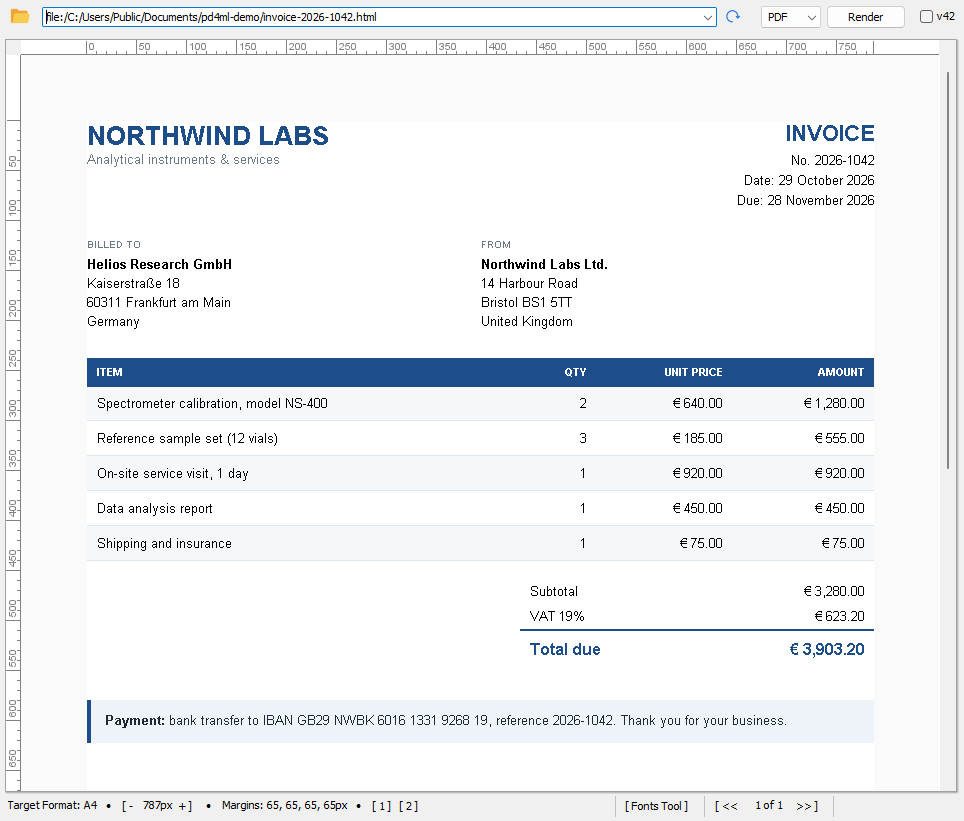
PD4Browser with an invoice open, at an HTML width of 787 pixels. The status bar shows two presets, [ 1 ] and [ 2 ].
Toolbar
| Control | What it does |
|---|---|
| Folder icon | Opens a file dialog for choosing a local HTML file. It starts in the folder you used last (dir.openlocalfile). |
| Address field | Holds the last ten documents you opened. Type or paste a URL and press Enter, or choose one from the list. If the address has no http://, https:// or file:, PD4Browser adds http://, and it turns backslashes in a file: address into forward slashes. |
| Reload icon | Reads the document again and redraws the preview, for example after you have changed the HTML, the CSS or an image. |
| Format list | Chooses what Render produces: PDF, DOCX or RTF. PD4Browser remembers your choice (render.format.selection). |
| Render | Converts the current document to the chosen format and opens the result in the application your system associates with that file type. |
| v42 | Switches between the v40 layout engine and the new v42 engine (render.engine.v42), both for the preview and for Render. |
Render saves its result as a temporary file named pd4ml…pdf (or .docx, .rtf). The file goes into the folder set in dir.tmp, or your system's temp folder, and is removed when you close PD4Browser. To keep a result, save a copy from the application that opened it.
Preview
The middle of the window shows one page of your document as PD4ML renders it, with rulers along the top and left edges. As you move the mouse over the page, the status bar shows its position in pixels, counted from the top left corner of the content area. When you drag, it also shows the size of the dragged rectangle, which is useful for measuring elements.
The window width is the HTML width. PD4Browser lays out your document as a browser window as wide as the preview, minus the page margins. This is the same value you'd pass to setHtmlWidth() in your application. A wider window makes the content smaller on the page; a narrower one makes it larger. The preview is redrawn after every resize, and Render uses the same width, so the exported document matches the preview.
Status bar
From left to right:
| Element | What it shows or does |
|---|---|
| Page format | The page format and orientation in use, for example A4. |
[ - width + ] |
The current HTML width in pixels. - and + make the window one pixel narrower or wider, for setting an exact width. |
| Margins | The page margins in use. |
[ 1 ] … [ 9 ] |
Your presets: saved combinations of HTML width, page format, margins and start folder (see Presets). The tooltip of each button shows its folder and width. |
| Progress bar | The progress of the current conversion or preview. |
[ Fonts Tool ] |
Opens the Fonts Tool (see Fonts Tool). |
| Cancel | Stops the running conversion. |
| Version | The PD4ML version and license; hidden when the window is narrow. |
[ << n of N >> ] |
The current page and the number of pages; the arrows move to the previous and next page. |
| Coordinates | The mouse position, plus the size of a dragged rectangle. |
PD4Browser also prints its progress to the console, with the time each step took: reading, parsing, layout, page breaks and writing. With debug.info.enable set, PD4ML's log appears there as well.
Presets
Presets let you switch between documents that need different settings. Clicking a preset sets:
- the window width, and with it the HTML width;
- the folder the file dialog opens in;
- optionally the page format, margins and orientation;
- optionally a label that goes into the PDF's Creator and Producer fields.
You define presets in pd4browser.properties, as preset.1.* up to preset.9.* (see Preset keys below). Number them without gaps: PD4Browser stops reading at the first missing number. Each preset gets its own [ n ] button in the status bar.
Closing
When you close PD4Browser, it saves its state to pd4browser.properties: the window size and position, your address history, the chosen output format, the folders you used last and all other settings.
PD4Browser rewrites the settings file when it closes. Edit pd4browser.properties only while PD4Browser is not running, otherwise your changes are overwritten.
Fonts
PD4ML finds its fonts through a font mapping file, pd4fonts.properties (see Configuring PDF Fonts). PD4Browser takes the font folder or mapping file from ttf.fonts.dir, or from -ttf on the command line, and passes it to useTTF(). The preview and every export use the same fonts.
With ttf.fonts.default.serif, ttf.fonts.default.sansserif and ttf.fonts.default.monospace you choose the fonts used for the generic CSS families serif, sans-serif and monospace in exported documents. font.kerning and font.ligatures turn on kerning and ligatures (see applyKerning() and enableLigatures()).
Fonts Tool
The Fonts Tool, available since v4.0.16, builds a font mapping file interactively, as an alternative to Pd4Cmd's -configure.fonts option.
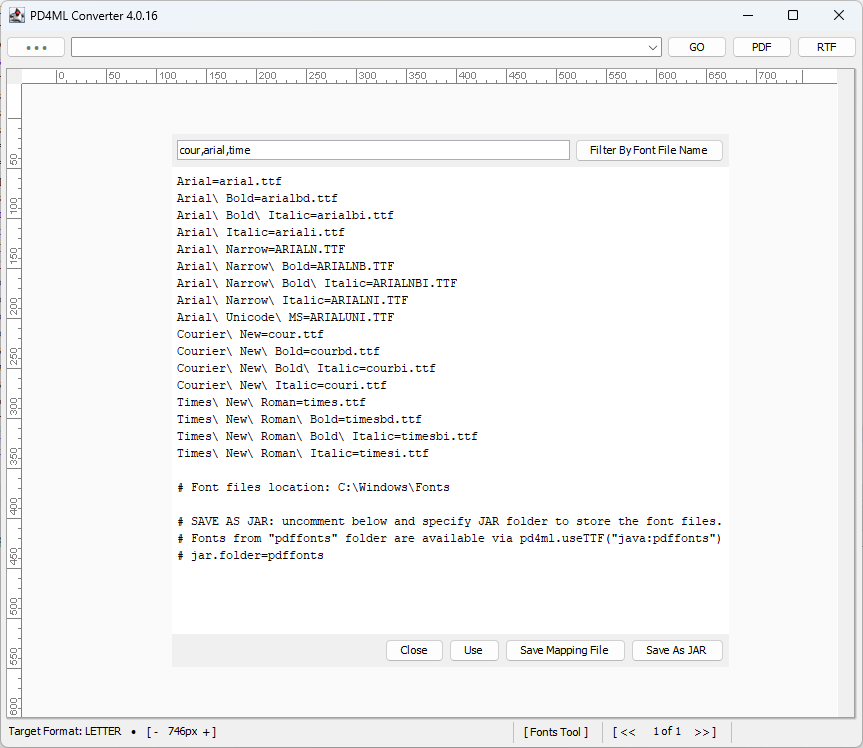
The Fonts Tool in PD4ML Converter 4.0.16, filtered to the Arial, Courier New and Times New Roman files of C:\Windows\Fonts. The toolbar of the current version looks different.
- Click [ Fonts Tool ] in the status bar.
- Select a folder with TrueType or OpenType fonts, such as your project's font folder or a system folder like
C:\Windows\Fonts. The tool lists every font it finds, one mapping line each (Font\ Name=fontfile.ttf), in a text area you can edit. - A system font folder usually holds far more fonts than a document needs. To narrow the list, type a few file name patterns into the field at the top, separated by commas (for example
arial, cour, times), and press Enter or click Filter By Font File Name. Only fonts whose file names contain one of the patterns stay in the list. Case is ignored. - Edit the list as needed: remove fonts you don't need, rename keys so they match the
font-familynames in your CSS, or add fallback entries likecustomsans1=…(see Tweaking Fonts in PDF). - Finish with one of the buttons:
| Button | What happens |
|---|---|
| Close | Closes the tool without keeping the list. |
| Use | Uses the list for the rest of this session: the preview and Render pick up these fonts. Nothing is saved, and ttf.fonts.dir is not changed. This is useful for testing a font setup before saving it. |
| Save Mapping File | Saves the list as a mapping file, called pd4fonts.properties unless you choose another name. If you save it somewhere other than the font folder (a good idea for system fonts), the file also remembers where the fonts are, so PD4ML can still find them. In your code, load it with pd4ml.useTTF("<path to the file>"). |
| Save As JAR | Packs the listed font files together with their mapping file into a JAR, pdffonts.jar by default. Put the JAR on your application's classpath and load the fonts with pd4ml.useTTF("java:pdffonts"). |
Inside the JAR, the fonts sit in a folder called pdffonts, and that's the name you give useTTF(). To use a different folder name, uncomment the jar.folder line at the end of the list and change it before you save. Then use the new name in useTTF("java:<folder>"):
# SAVE AS JAR: uncomment below and specify JAR folder to store the font files.
# Fonts from "pdffonts" folder are available via pd4ml.useTTF("java:pdffonts")
jar.folder=myfonts
The tool remembers the last font folder you used (dir.last.fonts) and your filter (font.tool.filter).
The list has the same format as any font mapping file: Java properties, one font per line. The key is the font name as your CSS refers to it, with spaces escaped by a backslash, and the value is the font file. For a font inside a TrueType collection (.ttc), the file name ends with the font's number in the collection:
Arial=arial.ttf
Arial\ Bold=arialbd.ttf
Courier\ New=cour.ttf
SimSun=simsun.ttc_1
customsans1=mybrandfont.ttf
Indexing fonts from the command line
The same mapping file can be generated from the command line:
java -jar pd4ml.jar -configure.fonts <font directory> [<mapping file location>]
Starting the class directly with PD4Browser -configure.fonts <font directory> does the same. If the current folder has no pd4browser.properties yet, it also creates one with that font folder already set as ttf.fonts.dir.
The pd4browser.properties file
pd4browser.properties is a standard Java properties file: one key=value setting per line, and lines starting with # are comments. The file is read as ISO-8859-1, and a backslash escapes special characters. So write Windows paths either with doubled backslashes (C\:\\work\\fonts) or with forward slashes (C:/work/fonts), and use \uXXXX escapes for non-Latin text.
PD4Browser saves the file when it closes, with the keys sorted alphabetically. If the file doesn't exist yet, it's created at that point with your current settings. Any keys PD4Browser doesn't know about are kept as they are.
Values are read as follows:
trueandfalseturn an option on or off. Anything other thantruecounts asfalse.- Numbers are whole numbers. If a numeric key holds something that isn't a number, PD4Browser does not start, and the error is printed to the console.
- The text
nullin a text value means "not set".
Some settings affect only exported files:
- Used for the preview and for exports: page format, orientation, margins, fonts, kerning, ligatures, the extra CSS,
table.breaks.enable,userSpace.adjustToContent,pdf.protect.pud, multi-column layout, the proxy and debug output. - Used only when you click Render: everything that changes the output file, like headers and footers, bookmarks, links, form fields, PDF/A, document title and author, encryption, default fonts and image settings.
Page
| Key | Values | Default | Meaning |
|---|---|---|---|
page. |
A page format name: A4, LETTER, LEGAL, A3, A5, … |
A4 |
The page format. The names are the same as the PD4Constants and PageSize constants. |
page. |
true, false |
false |
Landscape orientation. |
page. |
Left, top, right and bottom margin and the unit (mm or pt), comma-separated |
10,10,10,10,mm |
The page margins, in the order left, top, right, bottom. |
user |
true, false |
false |
Widens the HTML width when content is wider than the window, so wide tables don't get cut off (see adjustHtmlWidth()). |
user |
Pixels | 780 |
The preview width when PD4Browser was last closed. In the window, the width always follows the window size; converting without the window uses this value, minus the page margins, as the HTML width. |
pdf. |
Number of columns and gap, comma-separated, with the gap in mm or pt, for example 2,10mm |
not set | Lays the content out in columns (see generateMulticolumn()). |
Rendering
| Key | Values | Default | Meaning |
|---|---|---|---|
render. |
true, false |
false |
Uses the v42 layout engine for the preview and Render, just like the v42 check box. |
style. |
CSS text | not set | A style sheet added to every document, after its own styles. Useful for trying CSS changes without editing the document. |
table. |
true, false |
false |
Keeps table rows in one piece at page breaks. In the preview, this is done with tr, table { page-break-inside: avoid }. |
rendering. |
true, false |
true |
Lets an image that's taller than the rest of the page continue on the next page. Exports only. |
images. |
true, false |
false |
Asks PDF viewers to smooth scaled images. Exports only. |
svg. |
true, false |
false |
Draws SVG with Apache Batik (if it's on the classpath) instead of PD4ML's built-in SVG renderer. Batik supports more of SVG, but stops at minor errors in a file. |
pdf. |
true, false |
false |
Keeps sizes given in physical units (mm, cm, in, pt) true to size on paper, whatever the HTML width (see protectPhysicalUnitDimensions()). |
thread. |
Number of threads, or 0 to load one resource at a time |
0 |
Loads images, style sheets and fonts in parallel (see asyncResourceLoader()). |
debug. |
0, a PD4ML log level as a number, or true for everything |
0 |
Prints PD4ML's log to the console. Useful levels: 14 for errors, 62 for errors, warnings and information, 65535 for everything. Above 4, the v40 engine also prints the document's structure. |
Fonts
| Key | Values | Default | Meaning |
|---|---|---|---|
ttf. |
A folder with a pd4fonts.properties, a mapping file, or java:<folder> |
not set | The fonts PD4ML uses, as passed to useTTF(). -ttf on the command line takes priority. |
ttf. |
A font name from the mapping file | not set | The font used for the generic family serif. Exports only. |
ttf. |
A font name | not set | The font used for sans-serif. Exports only. |
ttf. |
A font name | not set | The font used for monospace. Exports only. |
font. |
true, false |
false |
Applies the fonts' kerning. |
font. |
true, false |
false |
Uses the fonts' ligatures and complex-script shaping. |
PDF output
These settings are used only when you click Render.
| Key | Values | Default | Meaning |
|---|---|---|---|
document. |
Text | not set | The PDF's document title. If you leave it out, the HTML <title> is used. |
document. |
Text | not set | The PDF's author. |
page. |
true, false |
false |
Builds PDF bookmarks from the headings <h1> to <h6>. |
page. |
true, false |
false |
Builds PDF bookmarks from named anchors (<a name="…">). If both bookmark settings are true, headings win. |
page. |
true, false |
true |
Makes HTML links clickable in the PDF. |
pdf. |
true, false |
false |
Turns HTML form controls into PDF form fields. |
pdf. |
true, false |
false |
Produces PDF/A output. |
Encryption and permissions
These settings are used only when you click Render. PD4Browser never writes them itself, so add them by hand.
| Key | Values | Default | Meaning |
|---|---|---|---|
permissions. |
-1, or the sum of the Constants.Allow… permission flags |
-1 |
-1 leaves the PDF unencrypted. Any other value encrypts it and allows only what you list: 4 low-quality printing, 8 changes, 16 copying, 32 comments, 512 content extraction, 1024 page assembly, 2052 printing. |
permissions. |
Text | not set | The password needed to open the PDF. Without one, anyone can open it and only the permissions apply. |
permissions. |
true, false |
false |
Uses AES with 256-bit keys instead of 128-bit. |
permissions.mask=0 encrypts the PDF with all permissions denied: it opens without a password, but cannot be printed or copied from. Earlier versions (before 4.0.24 and 4.1.2) also did this when the file had no permissions.mask line; add permissions.mask=-1 to settings files used with them.
Header and footer
These settings are used only when you click Render. They give every page a simple header and footer: a title line and a page number, or your own HTML, plus an optional watermark image. The header.* and footer.* keys work the same way, so the table only lists the header.* names. An area stays empty until you set a template or a watermark for it.
| Key | Values | Default | Meaning |
|---|---|---|---|
header. |
Points, or -1 |
12 |
The height of the area. With -1, PD4ML works out the height from your HTML template. |
header. |
HTML | not set | Your own HTML for the area. You can use the placeholders $[page], $[total] and $[title]. It replaces the title and page number lines. |
header. |
Text with $[title] |
null |
The title line, for example $[title]. Use null for none. |
header. |
left, center, right |
center |
The alignment of the title line. |
header. |
Text with $[page] and $[total] |
null |
The page number, for example Page $[page] of $[total]. Use null for none. |
header. |
left, center, right |
right |
The alignment of the page number. |
header. |
Number | 1 |
The number of the first page. |
header. |
Number | 0 |
How many pages at the start get no header. |
header. |
A font name | Courier New |
The font of the title and page number. |
header. |
Points | 10 |
The font size. |
header. |
0 plain, 1 bold, 2 italic, 3 bold italic |
0 |
The font style. |
header. |
#rrggbb |
#000000 |
The text color. |
header. |
An image URL | not set | An image drawn on every page. |
header. |
X, y, width and height in points, comma-separated | not set | Where the image goes and how big it is. You need both the URL and the bounds. |
header. |
0 to 100 |
100 |
How opaque the image is, in percent. |
Preset keys
You can have up to nine presets, numbered from 1 without gaps.
| Key | Values | Meaning |
|---|---|---|
preset. |
A folder | The folder the file dialog opens in. Required: the first preset without it ends the list. |
preset. |
Pixels | The window width, and with it the HTML width. |
preset. |
Text | Goes into the PDF's Creator and Producer fields while the preset is active. |
preset. |
A page format name | The page format. |
preset. |
Left, top, right and bottom margin and the unit, comma-separated | The page margins. |
preset. |
true, false |
The orientation. |
preset.1.dir=C:/work/invoices
preset.1.width=950
preset.1.format=A4
preset.1.margins.ltrb=15,20,15,20,mm
preset.2.dir=C:/work/reports
preset.2.width=1200
preset.2.landscape=true
Network
| Key | Values | Default | Meaning |
|---|---|---|---|
proxy. |
Host name | not set | The HTTP proxy for loading documents and their images, style sheets and fonts. |
proxy. |
Port number | 0 |
The proxy port. You need both the host and the port. |
Session state
PD4Browser maintains these keys itself; you rarely need to edit them.
| Key | Meaning |
|---|---|
history.0 … history.9 |
Your address history, newest first. |
render.format.selection |
The output format chosen for Render: 0 PDF, 1 DOCX, 2 RTF. |
window.x, window.y, window.width, window.height |
The window position and size. |
dir.openlocalfile |
The folder the file dialog opened last. |
dir.last.fonts |
The folder the Fonts Tool used last. |
font.tool.filter |
The Fonts Tool's file name filter. |
dir.tmp |
The folder for the files Render creates. If it doesn't exist, PD4Browser uses your system's temp folder instead. |
Unused keys
Some keys are still written for compatibility with older versions, or remain from them, but have no effect: adobe.font.metrics, rendering.patch, viewer.params, dir.viewer, viewer.executeble and viewer.rtf.executeble.
If you have a settings file from PD4ML v3, it may still use insets.top, insets.left, insets.right, insets.bottom, insets.units and page.orientation for margins and orientation. PD4Browser still reads them, and replaces them with page.margins.ltrb and page.landscape the next time it saves the file.
Example
A complete file for A4 documents with 15 mm margins, your project's fonts, kerning, a footer with page numbers and unencrypted PDF output:
page.format=A4
page.landscape=false
page.margins.ltrb=15,15,15,15,mm
userSpace.adjustToContent=true

ttf.fonts.dir=C:/work/project/fonts
ttf.fonts.default.sansserif=Open Sans
font.kerning=true

page.bookmarks.headings=true
page.hyperlinks=true
document.author=ACME Corp.
permissions.mask=-1

footer.height=20
footer.page.num.template=Page $[page] of $[total]
footer.page.num.align=center
footer.font.face=Arial
footer.font.size=9

preset.1.dir=C:/work/project/templates
preset.1.width=950
See also
- Pd4Cmd Command-Line Reference: converting from the command line and from scripts.
- Configuring PDF Fonts: font mapping files and
useTTF()in detail. - PD4ML Fonts Tool and Tweaking Fonts in PDF on pd4ml.com.
- PDF Header and Footer Generation: HTML headers and footers through the API.